
DVD/CD Flash Copy Tower Manual






www.aleratec.com
12
Using the DVD/CD Flash Copy Tower
Disc Spanning
To use Disc Spanning go to Setup and enable Disc Spanning. When you want to copy
a Memory Card which has a content size bigger than a disc, the DVD/CD Flash Copy
Tower will automatically estimate the number of blank discs required for the job and
execute Disc Spanning. Whenthelesizeisveryclosetothewritablespaceonthe
blankdiscs,theDVD/CDFlashCopyTowermayunderestimatethenumberofdiscs
needed.IfthishappensyoucanaddanextradiscbeforeyoustartorwhentheDVD/
CDFlashCopyTowerdisplays“WaitingDisc”. For example, when you copy an SD
Card with over 2GB content size to CDs, you place a CD into the burner, and the DVD/
CD Flash Copy Tower will calculate total number of discs to back up this SD Card (4
discs for this example, see Setup → Advanced Setup → DVD/CD/Spare Size on page 24
of this User Guide for seting writable space on DVD/CD). If you place a DVD (4.7G)
to copy, the DVD/CD Flash Copy Tower will start copying without requiring additional
discs.
Using Disc Spanning
1. Plug a Memory Card (ex. SD) and place a blank DVD or CD disc into the burner.
2. Select 1.Copy, → Select 1.M-CardtoDisc → Press OK → The DVD/CD Flash
Copy Tower will begin copying.
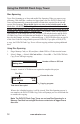
Example: A total of 4 CD-R discs are required to complete this project
When a disc is nished copying, it will be ejected. If the Disc Spanning process is
not complete, the DVD/CD Flash Copy Tower will prompt you for a new blank disc
to continue the copying.
Note: The DVD/CD Flash Copy Tower can not use Disc Spanning for a
Memory Card that has a single file whose content size is bigger than a
disc size.
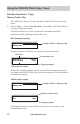
Total = 135
Waiting disc...
Number of files on SD Card
Write D1/4 530 M
Total 2043MB 80M
First Disc
Current disc size
Copying progress
Total size to be copied