
User`s manual



Alcorn McBride Digital Video Machine DVM-7400 User’s Manual Rev 1.5
61
The DVM is
compatible with any
serial GPS sensor
which outputs a
NMEA-0183 data
stream at default 4800
baud. You can change
the baud rate using
the BR command in
your GPS playlist.
The DVM will steadily
blink the Green LED
whenever an active
GPS input is detected.
Unless you are
launching a GPS
Playlist by other
means (ie. Playlist,
Ethernet, etc.), make
sure that your GPS
playlist is named
“PLY00000.GPS”.
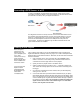
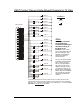
The diagram below shows the proper connection using the Alcorn McBride GPS Kit.
Place the GPS sensor on top of the vehicle or other position that the GPS sensor
manufacturer recommends.
Connect the DVM A/V outputs to the onboard Audio and Video systems.
Install the Compact Flash card that contains the playlist you prepared in the previous
section. Make sure that it also contains all of the videos referenced in the playlist.
Connect 12VDC power to the last remaining connector on the GPS harness. The
DVM GPS kit includes a cigarette lighter adapter. The DVM should power on and the
LED should start flashing once per second. When the LED is flashing red, this means
that the has not yet locked on to a satellite. When the LED is flashing green, the
GPS sensor has locked on to several GPS satellites, and you are ready to roll!
Now as you drive around to the programmed Longitude and Latitude points your
videos will automatically trigger.
Overlapping GPS Routes
GPS Playlists are executed in a Random fashion. In other words, the order in which
GPS Commands are listed within the GPS Playlist is of no importance. That means
that you can go through the first trigger in the GPS playlist, and then skip to the fifth
trigger for example. There is no need to go in any specific order.
There is only one catch to this mode of operation. What if you want to have the DVM
play a different video the second or third time passing through the same point? For
example, say you want to play an “Arrival” video when passing through a point in one
direction, and then play a “Departure” video when passing the same point in the
opposite direction.
Here’s how to do implement this: Make two different GPS playlists; one for the first
direction and a second for the other direction. Each playlist contains an entry with the
same “Arrival-Departure” point, but each has a different video file associated with it.
The last GPS coordinate in the first playlist is a Play command with the file number
corresponding to the second playlist number. Similarly, the second playlist has a last
GPS coordinate with a file number corresponding to the first playlist number. When
these points are passed the DVM switches to the new playlist and abandons the old
one.
You can do this for as many different messages as you want for the same point. You
just need to decide where you want to switch to the next playlist. Note also that you
do not need to play a video at the point where the new playlist takes over. All you
need to do is call up the new playlist, at which time it will take over and start looking
for GPS matches before playing a video.