
User`s manual



Alcorn McBride Digital Video Machine DVM-7400 User’s Manual Rev 1.5
59
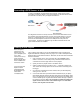
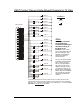
Connecting a GPS Sensor to a PC
In order for GPS Builder to detect latitude and longitude, a GPS sensor must be
connected to a serial port. Below is a connection diagram for the GPS Kit that can be
purchased as an accessory with your Digital Video Machine.
This diagram shows what is currently the most common GPS cable interface for PC.
This interface uses a standard RS-232 connector to send GPS strings to your PC’s
serial port. The Blue PS/2 port is only used to supply power to the GPS Sensor.
There are also USB adapters that use the PC’s USB port for both power and
communication. Contact Alcorn McBride to get the latest information about what
types of GPS interfaces are available.
Creating a GPS Playlist
Enter subsequent
commands on the
following rows until
you’ve completed your
“tour.” Each
command can be any
of the commands
listed in the pull-down
menu available in the
Commands column.
If you want this GPS
Playlist to launch
automatically when
the DVM powers up,
name the file
“PLY00000.GPS”.
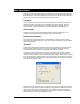
This is a step-by-step guide on how to use GPS Builder to make a playlist for the
Digital Video Machine. Basically what we’re going to do is make a “boilerplate” GPS
playlist by filling in some DVM commands. Afterwards, we will enter GPS coordinates
for these commands.
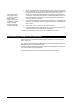
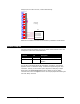
1. Click on the little “down” arrow in the first cell in the Command column.
Select a command. This is usually a Play command because this is the
command that is used to play videos or launch playlists.
2. Specify the video or playlist number in the Data1 column.
3. Select an initial Tolerance by clicking on the “…” inside the Tolerance cell.
This number will normally depend on how fast the vehicle is traveling for the
first trigger.
4. Once all of the commands have been entered, save your GPS Playlist by
clicking on File…Save As…
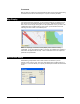
5. Connect the GPS sensor (sometimes called a GPS Mouse) to your laptop.
GPS Builder will begin detecting the GPS input stream and will display “GPS
OK!” once detection has occurred. When the GPS sensor successfully locks
onto the satellite signal, Longitude and Latitude values will begin to update in
the windows on the left. Note: No Longitude or Latitude information will
appear until the sensor locks onto a satellite signal. For some GPS
sensors, this may take a few minutes.