
User`s guide








CD’s, DVD’s, and USB devices
The Digital Video Machine HD has the ability to automatically detect media
files located on devices connected to it. You can connect a media device that is
natively supported under Windows XP (meaning that no additional drivers are
required), like a USB key, USB Hard Disk, Compact Flash adapter, or CD/DVD
drive. If you have configured the device and its directories properly, when the
unit boots up, it will scan the device, copy new media files to its directories, and
continue on with normal operation.
NOTE: USB 2.0 has not been tested, and some Compact Flash adapters require
a driver to be installed before they work. If this is true for your device, you
cannot use it with the DVMHD. SanDisk Compact Flash adapters, BusLink
USB keys, and ViPower USB drives have been verified. For the CD/DVD
option, you must order a DVMHD from your Alcorn distributor with the
CD/DVD option specified.
Drive Configuration and Update
Here are the steps you need to take to ensure your drive image will be
successfully copied to the unit’s drive image:
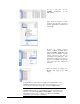
1. Name your volume label NEW_MEDIA
2. Create a MEDIA directory on the image
3. Inside the MEDIA folder, create a VIDEOS, folder (if you want to
update videos).
4. Copy your videos into the VIDEOS folder on your device.
5. In the MEDIA folder, the unit has several subfolders: VIDEOS,
PLAYLISTS, and SCHEDULES. As in steps 3 & 4, create the
appropriate folder inside the MEDIA folder on your device for
whatever files you want copied to the DVMHD, then copy your files to
the appropriate folders. You can also update your unit’s application by
putting os.new in the MEDIA folder itself.
6. Attach the USB device (or insert your CD/DVD) and reboot the
DVMHD.
Transferring Files to the DVMHD 49