
User`s guide



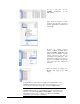





To copy a new video onto the
DVMHD, Double-Click on the
Videos folder.
Using Windows Explorer or My
Computer, find the file you wish to
transfer. Right-Click on that file and
select Copy.
Re-select the Internet Explorer
window containing the FTP session
with the DVMHD. Right-click in the
blank area and select Paste. A Status
window will appear and offer an
approximation of transfer time. This
approximation will vary depending on
the speed of your FTP connection, the
speed of the source drive, and the size
of the file.
Once the transfer is complete, the
filename will appear in the FTP
listing.
Congratulations! You have just successfully used the FTP interface of the
DVMHD. In the future, you can use this exact same method to copy over
Videos, Playlists, Schedules, OS Updates, and even DVMHD settings.
NOTE: If you have experienced any problems with connecting to the
DVMHD’s FTP interface, it is most likely the result of a networking issue.
Read the section titled Networking Your DVMHD to verify that you have
taken all the necessary steps to configure your PC and the DVMHD to
communicate with each other over Ethernet.
48 Transferring Files to the DVMHD