
User`s guide








NOTE: It’s a good rule of thumb to keep the demo clip(s) on your DVMHD.
You can rename them and then, if ever necessary, use them later to debug
potential problems in the field.
Internet Explorer always comes preloaded on a Windows PC, which is why
we provide this guide. Even if you do not have a Windows PC, most Web
Browsers for other major Operating Systems handle FTP in a similar manner
to the following example.
Launch Internet Explorer.
Type
ftp://192.168.0.254 and press
Enter. If you have changed the default
address of the DVMHD, you would
obviously type that address instead of
192.168.0.254.
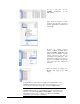
A box will appear that prompts you
for a User name and Password. Enter
admin as the User name, and
password as the password. Make
sure that the letters are all lower case.
Also, verify that the Log on
anonymously box is unchecked. Click
Log On.
NOTE: If this box does not appear
automatically, Right-Click in the
blank area within Internet Explorer.
Select Login As… from the dropdown
menu.
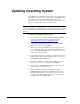
If your login is successful, you will
see a listing of files on the DVMHD.
In the FTP root folder of the
DVMHD, you will find a copy of this
manual, the configuration file
(DVMHD.INI), a copy of AMI
Terminal (for PC-based control), and
some other miscellaneous files. As
you can see from the screenshot,
Videos, Playlists, and Schedules also
have their own folders.
Transferring Files to the DVMHD 47