
User`s guide








46 Transferring Files to the DVMHD
Transferring Files to the DVMHD
Removable Hard Drive
DTV clips may be transferred into the DVMHD via the removable hard drive.
To do so, you will need to install a Hard Drive Docking Station (optional) into
your Windows NT/2000/XP PC and copy the files onto the X:\Media\Videos
folder of the drive (X represents the letter your PC automatically assigns to the
drive).
If you do not wish to use an internal docking station in your PC, external USB
docking stations are available through a variety of vendors as well. These
generally have slower transfer speeds, but they get the job done without
disassembling your PC.
NOTE: The removable hard drive will only work with a NTFS file system
(i.e. Windows NT 4.0, Windows 2000, or Windows XP). Support for NTFS
under Windows 95/98 or DOS may be purchased from
www.winternals.com, but is not supported by Alcorn McBride Inc.
FTP Connection
DTV clips may also be transferred using an FTP connection. FTP is a way of
copying files over an Ethernet Cable. If you log onto the DVMHD’s FTP server
you can the copy files to and from the DVMHD’s drive.
For a degree of security, the DVMHD does not allow anonymous DTP
connections. For that reason, you will need to supply the following User ID and
Password:
User ID: admin
Default Password: password
If you configured your computer for the DVMHD web interface, you’re already
able to use the DVMHD’s FTP interface. You can use any FTP program you
like to talk to the DVMHD’s FTP interface. We frequently use WS
FTP(shareware), Cute FTP(shareware), Internet Explorer, and DOS FTP.
If you don’t know how to use FTP programs, there are plenty of tutorials on the
web. Just visit your favorite search engine and type in “FTP tutorial”. For your
convenience, the next section is a step-by-step example using Internet Explorer
to transfer files to the DVMHD.
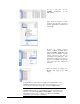
Transferring files via FTP with Internet Explorer
If you’re not familiar with FTP, begin by searching the Internet for an FTP (File
Transfer Protocol)Tutorial. You’ll need to configure your DVMHD and the
TCP/IP settings on your computer to use this guide. Please refer to the
Networking Your DVMHD section of this manual.