
User`s guide


2. Plug the other end of the red “Null-Ethernet” cable into the Ethernet port on
your computer.
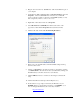
3. Using Windows 2000 or XP, Right-click on My Network Places and select
Properties. A list of available Ethernet connections on your PC will
appear. Select the one that is connected to the DVMHD (usually you only
have a single entry name Local Area Connection).
4. Right-click on this selection and choose Properties.
5. Select Internet Protocol (TCP/IP) from the list at the center of the
properties box then click the Properties button just below this list.
6. Click the radio button named Use the Following IP Address.
7. Write down your current IP address and Subnet Mask settings and keep
them in a safe location.
8. Change your IP Address to the value shown above (192.168.0.2). Change
your Subnet Mask to the value shown above (255.255.255.0). Change your
Default Gateway to the value shown above (192.168.0.1).
9. Click the OK button twice to exit and save the changes to the Network
setup.
10. Launch a Web Browser (Netscape, Internet Explorer, etc.).
11. In the address box, type “http://” followed by the IP address of your
DVMHD. If this is your first time connecting to your DVMHD, or you
have not changed the IP address, the correct entry should be:
http://192.168.0.254
Networking Your DVMHD 43