
User`s guide


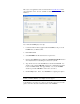




This easy-to-use application can be downloaded from
www.alcorn.com in the
support/software section. It is also available via the DVMHD’s Web and FTP
interfaces.
Let’s make the DVMHD play a test clip!
1. Connect the RS-232 cable (supplied with the DVMHD) to the port on the
DVMHD and your Windows PC.
2. Run AMI Terminal
3. Select DVMHD in the Product Selection dropdown box.
4. Click on the Configure button within the Communication Method section
and verify that the correct COM port is selected for your PC.
5. Type 1 in the box next to the Search button, and then click Search. You
should see the command 1SE<0D> appear in the communication log at the
bottom of AMI Terminal. After approximately 1 second, the DVMHD
should respond with an R<0D> as in the above screenshot.
6. Click the Play button. Viola! Your DVMHD is now playing test clip #1!
NOTE: If you do not see any video output, but the DVMHD has acknowledged
the Play command (R<0D>), your display does not support
Congratulations! Now that you’ve played your first clip, please read on in this
guide to learn more about the advanced features of the DVMHD.
8 Getting Started