
Quick Reference Guide


EZ-GUIDE
®
250
LIGHTBAR GUIDANCE SYSTEM
EZ-GUIDE
®
250 LIGHTBAR GUIDANCE
SYSTEM QUICk REFERENCE CARD
Mapping
To enter mapping mode, select the icon
and press OK. Mapping is only available in
Advanced Mode.
While in mapping mode, you can:
• mappoint,lineandareafeatures,including
exclusion zones
• engageanddisengageEZ−Steer
®
Note: Mapping is disabled if you do not
have good qualityGPS.
Mappedfeaturesaresavedwiththefield.To
seemappedfeatureswhenyoureturntoa
field,reloadthefieldandstartaneweventor
continuewithanexistingevent.
Toconfiguremappingoptions,includingwarning
zone distance, recording position, deleting
features,selectConfiguration / Mapping.
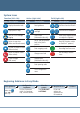
Tomapapointfeature,select
and then one
ofthefollowingicons:
Rock Tree
Weed Generic Point
Tomapalinefeature,select
then:
Generic Line
Tomapanareafeature,select and then one
ofthefollowingicons:
Generic Area Exclusion Zone
Todeletetheclosestfeature,selectthe
delete icon:
Delete
Bydefault,theviewautomatically
switchestotheperspectiveviewwhenyou
enterafield.Tosettheviewsoitswitches
whenyouengageanautosteeringsystem
orformanualviewcontrol,inAdvanced
mode select Configuration / System /
Display / View.
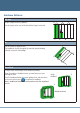
Map Screens
Plan View Perspective View
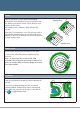
Nudge
Use the and nudge buttons to correct
forpositiondriftcausedbyGPSsatellite
constellationchangeswhiledrivinginthefield.
Nudgeisalwaysappliedtotheguidanceline
relative to the vehicle heading. The total current
nudge distance appears on the tip bar at the
bottomofthescreen.
Toconfigurethenudgeoptions,inAdvanced
mode, select Configuration / System /
Guidance.
Shift to Here
InAdvancedmode,youcanuseShifttoHere to:
• CorrectforGPSpositiondriftwhen
returningtothefieldforguidance,for
exampleafterpausing
• Offsetallswathsforapplicationsin
subsequent years
Youcansavetheshiftedswaths,whichnudge
doesnotallow.