
User`s manual
13 Chapter 2
2.1.3 Serial COM ports
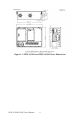
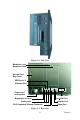
There are four serial COM ports on the bottom of the rear cover. You can
easily attach a serial device to the panel PC, such as an external modem or
mouse. Follow these instructions:
1. Make sure the panel PC and any other peripherial devices you may
have connected to the panel PC are turned off.
2. Attach the interface cable of the serial device to the panel PC's serial
port. (See Fig. 2-2.) If necessary, attach the other end of the interface
cable to your serial device. Fasten any retaining screws.
3. Turn on any other peripheral devices you may have connected to the
panel PC, and then turn on the panel PC.
4. Refer to the manual(s) which accompanied your serial device(s) for
instructions on configuring your operating environment to recognize the
device(s).
5. Run the BIOS setup program to set the I/O address and IRQ, and con-
figure the jumper settings to change the mode of the COM ports (refer to
section 3.3).
2.1.4 VGA port
An external VGA-compatible device may be connected to the system via
the 15-pin external port located on the rear of the system unit. The panel
PC simultaneously supports an external CRT monitor in addition to its
own LCD display.
1. Make sure the panel PC is turned off.
2. Connect the external monitor to the system.
3. Turn on the panel PC and the external monitor.
2.1.5 USB ports
An external USB device may be connected to the system via the 4-pin
USB ports located on the rear side of the system unit.
1. Connect the external device to the system.
2. The USB ports support hot plug-in connection. You should install the
device driver before you use the device.