
Operation Manual



84
Creating PDFs
Last updated 4/7/2015
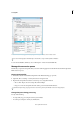
A Menus B Adobe PDF settings files C Files in job queue D Failed job E Context menu F Status window
To convert PostScript files automatically in Acrobat Pro, set up a watched folder in Distiller.
To start Acrobat Distiller (Windows), choose All Program > Adobe Acrobat Distiller DC.
Manage the conversion queue
Distiller lets you queue PostScript files that you create in authoring applications and then monitor them throughout the
PDF conversion process.
Queue a PostScript file
1 In Distiller, select an Adobe PDF settings file from the Default Settings pop-up menu.
2 (Optional) Choose Settings > Security and select an encryption level.
3 Open the PostScript file and start the conversion process, using either method:
• Choose File > Open, select a PostScript file, and click Open.
• Drag one or more PostScript files from the desktop to the Acrobat Distiller window.
Click Pause before doing step 3 if you want to review the queue before Distiller starts converting the files.
Change the queue during processing
Do any of the following:
• To temporarily stop processing the current job, click Pause.
• To resume processing the current job, click Resume.