
Operation Manual



75
Creating PDFs
Last updated 4/7/2015
2 Choose Adobe PDF from the printers menu.
3 Click the Properties (or Preferences) button to customize the Adobe PDF printer setting. (In some applications, you
may need to click Setup in the Print dialog box to open the list of printers, and then click Properties or Preferences.)
4 In the Print dialog box, click OK.
Note: Your PDF is saved in the folder specified by the setting of the Adobe PDF Output Folder in the Preferences dialog
box; the default location is My Documents. If you specify Prompt For Adobe PDF Filename, then a Save As dialog opens
when you print.
Create a PDF using the Print command (Mac OS X)
The method for creating PDFs using the Print command changed in Mac OS v10.6 Snow Leopard with Acrobat 9.1 and
later. The following procedure describes the method in both Snow Leopard and earlier versions of Mac OS X.
1 Open the file in its authoring application, and choose File > Print.
2 Choose Save AsAdobe PDF from the PDF menu at the bottom of the dialog box.
3 For Adobe PDF Settings, choose one of the default settings, or customize the settings using Distiller. Any custom
settings that you have defined are listed.
For most users, the default Adobe PDF conversion settings are adequate.
4 For After PDF Creation, specify whether to open the PDF.
5 Click Continue.
6 Select a name and location for your PDF, and click Save.
Note: By default, your PDF is saved with the same filename and a .pdf extension.
Adobe PDF printing preferences (Windows)
Printing preferences apply to all applications that use the Adobe PDF printer, unless you change the settings in an
authoring application by using the Page Setup,Document Setup, or Print menu.
Note: The dialog box for setting printing preferences is named Adobe PDFPrinting Preferences, Adobe PDF Printing
Defaults, or Adobe PDFDocument Properties, depending on how you access it.
To access printing preferences:
• Open the Printers window from the Start menu. Right-click the Adobe PDF printer, and choose Printing
Preferences.
• In an authoring application such as Adobe InDesign, choose File > Print. Select Adobe PDF as the printer, and click
the Properties (or Preferences) button. (In some applications, you may need to click Setup in the Print dialog box to
access the list of printers, and then click Properties or Preferences to customize the Adobe PDF settings.)
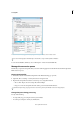
PDF-specific options appear on the Adobe PDF Settings tab. The Paper Quality tab and Layout tab contain other
familiar options for the paper source, printer ink, page orientation, and number of pages per sheet.
Note: Printing Preferences are different from printer Properties. The Preferences include Adobe PDF-specific options for the
conversion process; the Properties dialog box contains tabs of options that are available for any type of printer.
Adobe PDFConversion Settings Select a predefined set of options from the Default Settings menu or click Edit to view
or change the settings in the Adobe PDF Settings dialog box.
Adobe PDF Security To add security to the PDF, choose one of the following options, or click Edit to view or change
the security settings: