
Operation Manual




532
Color management
Last updated 4/7/2015
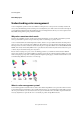
A Document is created in its working color space. B Document’s color values are translated to color space of chosen proof profile (usually the
output device’s profile). C
Monitor displays proof profile’s interpretation of document’s color values.
Soft-proof colors (Acrobat Pro DC)
1 Choose To o ls > Print Production. The Print Production tools are displayed in the right-hand pane.
2 In the right-pane, click Output Preview.
3 Choose the color profile of a specific output device from the Simulation Profile menu.
4 Choose any additional soft-proof options:
Simulate Black Ink Simulates the dark gray you really get instead of a solid black on many printers, according to the
proof profile. Not all profiles support this option.
Simulate Paper Color Simulates the dingy white of real paper, according to the proof profile. Not all profiles support
this option.
Color-managing PDFs for printing (Acrobat Pro DC)
When you create Adobe PDFs for commercial printing, you can specify how color information is represented. The
easiest way to do this is using a PDF/X standard. For more information about PDF/X and how to create PDFs, search
Help.
In general, you have the following choices for handling colors when creating PDFs:
• (PDF/X-3) Does not convert colors. Use this method when creating a document that is printed or displayed on
various or unknown devices. When you select a PDF/X-3 standard, color profiles are automatically embedded in
the PDF.
• (PDF/X-1a) Converts all colors to the destination CMYK color space. Use this method if you want to create a press-
ready file that does not require any further color conversions. When you select a PDF/X-1a standard, no profiles are
embedded in the PDF.
Note: All spot color information is preserved during color conversion; only the process color equivalents convert to the
designated color space.