
Operation Manual






498
Preflight (Acrobat Pro DC)
Last updated 4/7/2015
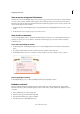
5 To view basic Audit Trail information, click the Standards icon in the navigation pane on the left. In the
Standards panel, do any of the following, as needed:
• To verify that the profile used on the document is the same as the profile on your local system, clickCheck Profile
Fingerprint. For example, if you asked a customer to use a specific profile, you can use this check to confirm it
was used.
• To remove the audit trail, click Remove Preflight Audit Trail and save the file.
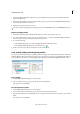
6 To view additional Audit Trail information, choose File > Properties, and click Additional Metadata in the
Description tab. Then in the dialog box, click Advanced. In the list, expand
http://www.gwg.org/ns/gwg_preflight_v1. In addition to the basic preflight information, this list includes an
overview of results, and the date and time the profile was executed.
Note: You can overwrite an existing audit trail by embedding a new audit trail.
More Help topics
Preflight alert options
Preflight profiles (Acrobat Pro DC)
More Help topics
Analyzing documents with the Preflight tool (Acrobat Pro DC)
About preflight profiles
The success of a preflight inspection depends on how well you define the criteria for the inspection. The inspection
criteria are packaged in a file called a preflight profile. A preflight profile includes one or more checks, fixups, or both
checks and fixups. Each check includes one or more property statements that validate the PDF content. Preflight shows
an error only if all the property statements in the check are in error. In the Preflight Edit Profile dialog box, you can
specify which values to use and how to handle mismatches. For example, you can choose a profile that simply reports
mismatches, or one that automatically fixes a mismatch according to its specified parameters. A profile with a fixup has
the filled-in gray wrench icon next to it.
Adobe Acrobat includes several predefined preflight profiles, organized into groups, such as Digital Printing, PDF
Analysis, Prepress, and PDF/A, PDF/E, or PDF/X Compliance. You can use the predefined profiles as is or modify them
to create custom profiles. The checks that make up the profiles (called rules in previous versions of Acrobat) are
organized by categories, such as Document, Pages, Images, and so on. Each check in a category governs a particular
document property.
To help you determine what document properties the preflight profile analyzes, you can review information about each
selected check in the Preflight Edit Profile dialog box. This information describes what criteria the check uses to
analyze, and possibly fix, a document property.
View profiles
1 Do one of the following:
• If the Preflight dialog box is not open, choose To o l s > Print Production > Preflight.