
Operation Manual







482
Print production tools (Acrobat Pro DC)
Last updated 4/7/2015
Remove embedded profiles from individual objects
You can remove the embedded color profiles from images and other objects in the PDF. Without the embedded profile,
Acrobat uses the working space profile of the object to determine how to handle the appearance of the color.
1 Choose To o ls > Print Production > Edit Object, and select the objects you want to convert.
2 Right-click the selection, and choose Properties.
3 Click the Color tab.
4 Click Decalibrate Colors.
Ink Manager overview
The Ink Manager provides control over inks at output time. Changes you make using the Ink Manager affect the output,
not how the colors are defined in the document.
Ink Manager options are especially useful for print service providers. For example, if a process job includes a spot color,
a service provider can open the document and change the spot color to the equivalent CMYK process color. If a
document contains two similar spot colors when only one is required, or if the same spot color has two different names,
a service provider can map the two to a single alias.
In a trapping workflow, the Ink Manager lets you set the ink density for controlling when trapping takes place, and it
lets you set the correct number and sequence of inks.
Note: InDesign and Acrobat share the same Ink Manager technology. However, only InDesign has the Use Standard Lab
Values For Spots option.
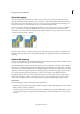
A Process ink B Aliased Spot ink C Spot ink
Open the Ink Manager in Acrobat
Do one of the following:
• Choose To o ls > Print Production > Ink Manager.
• Choose File > Print, and click Advanced. In the Output panel of the Advanced Print Setup dialog box, click Ink
Manager.