
Operation Manual







474
Print production tools (Acrobat Pro DC)
Last updated 4/7/2015
For more information on transparency output issues, see the Print Service Provider Resources page of the Adobe
Solutions Network (ASN) (English only), available on the Adobe website.
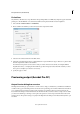
Flattener Preview dialog box overview
Use the preview options in the Flattener Preview dialog box to highlight the areas and objects that are transparent, as
well as those affected by transparency flattening. Transparent content is highlighted in red, and the rest of the artwork
appears in grayscale.
Use this information to adjust the flattener options before you apply the settings, and then save them as flattener presets.
You can then apply these presets from other dialog boxes. For example, PDF Optimizer (Save As Other > Optimized
PDF), Advanced Print Setup dialog box, and the PostScript Settings dialog box (File > Export To).
Open the Flattener Preview dialog box
❖ Choose To ol s > Print Production >Flattener Preview.
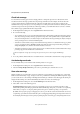
Preview which areas of artwork will be flattened
Use the preview options in the Flattener Preview to highlight areas that are affected by flattening. You can use this color-
coded information to adjust flattening options.