
Operation Manual







469
Print production tools (Acrobat Pro DC)
Last updated 4/7/2015
Fix hairlines
Very thin lines, called hairlines, are problematic in offset printing. If left as is in PDFs, they might not appear in the final
printed piece. The Fix Hairlines tool can find most hairlines and replace them with a heavier-weight line.
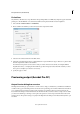
1 Choose To o ls > Print Production > Fix Hairlines.
2 Enter a width for the hairline you want to find, and enter a replacement width.
3 Select the unit of measurement from the Units menu.
4 (Optional) Select Include Type3 Fonts or Include Patterns to replace hairlines in Type 3 characters or patterns with
the same replacement width as other hairlines.
Font characters and patterns can be used in a variety of contexts in the same document (for example, different
magnification values), so changing the line width may produce unexpected results. Check the results if you select
these options, and adjust your selections as necessary.
5 Specify the pages to check.
Previewing output (Acrobat Pro DC)
Output Preview dialog box overview
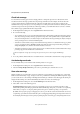
The Output Preview dialog box provides the tools and controls to help you simulate how your PDF looks in different
conditions. The top part of the dialog box has several controls for previewing your document. The Preview menu allows
you to switch between previewing separations and previewing color warnings. When you select Separations, the
bottom half of the dialog box lists information about the inks in the file, as well as total area coverage controls. When
you select Color Warnings, a warnings section replaces the separations section and provides information about ink
warning controls. The preview settings you specify in the Output Preview dialog box are reflected directly in the open
document.