
Operation Manual




369
Printing
Last updated 4/7/2015
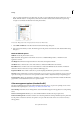
To learn more about an option, select it. A description appears at the bottom of the dialog box.
2 Set options, and then click OK.
Note: Acrobat sets the PostScript level automatically, based on the selected printer.
Set advanced print options (Acrobat Pro DC)
Print settings are preserved until you change them. When you change an option, the Settings value automatically
updates from Acrobat Default to Custom, and the new settings are preserved. You can also save custom settings using
a unique name.
1 In the Print dialog box, click Advanced.
2 If a custom printer settings file exists with the settings you want, choose it from the Settings menu. Otherwise,
choose Acrobat Default.
To learn more about an option, select it. A description of it appears at the bottom of the dialog box.
3 If normal printing doesn’t produce the desired results, select Print As Image and choose a resolution from the drop-
down list.
4 Select any of the panels on the left side of the Advanced Print Setup dialog box, and set options for either composite
or separations output.
Note: Some options in the general Print dialog box affect settings in the Advanced Print Setup dialog box. For example,
selecting the Print Color As Black option (Windows) affects color settings in Advanced Print Setup.
• Set color and other output conditions. See Output options (Acrobat Pro DC).
• Set options for printer marks. See Include marks and bleeds (Acrobat Pro DC).
• Set options for PostScript printers. See PostScript options.
Note: Acrobat sets the PostScript level automatically, based on the selected printer.
• Set options for managing color. See Color management options (Acrobat Pro DC)
5 To save the settings using a unique name, click Save As, specify a filename, and click OK.
6 Click OK to accept the settings and return to the Print dialog box.
PostScript options
Use the PostScript Options panel of the Advanced Print Setup dialog box to set options for a particular PostScript
printer. These options include how to handle nonresident printer fonts and whether to download Asian fonts. If a PDF
contains device-dependent settings, such as halftones and transfer functions, these settings can be sent in the PostScript
output to override the default settings in the printer. To use these options, you must be connected to a PostScript printer
or have a PostScript printer driver installed with a PPD file selected.
Font And Resource Policy Specifies how fonts and resources in the document are sent to a printer when those fonts and
resources aren’t present on the printer.
Send At Start Downloads all fonts and resources at the start of the print job. The fonts and resources remain on the
printer until the job has finished printing. This option is the fastest but uses the most printer memory.
Send By Range Downloads fonts and resources before printing the first page that uses them, and then discards them
when they are no longer needed. This option uses less printer memory. However, if a PostScript processor reorders the