
Operation Manual




368
Printing
Last updated 4/7/2015
Overlap Specifies the minimum amount of duplicated information you want printed on each tile for ease in
assembly. The Overlap option uses the unit of measure specified for the document. The value should be greater than
the minimum nonprinting margins for the printer. You can specify up to half the size of the shortest side of the
document page to overlap. For example, tiles for a page that measures 11-by-17 inches (279.4mm-by-431.8mm) can
overlap up to 5.5 inches (139.7mm).
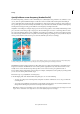
Labels Includes the PDF name, date of printing, and tile coordinate on every sheet. For example, Page 1 (1,1) means
row 1, column 1 of the first page. Tile coordinates are used for reassembling the tiles.
Cut Marks Prints marks on each corner of a tiled page for ease of assembly. Use this option in conjunction with the
Overlap option. When you specify an overlapping edge and then superimpose those edges, you can use the cut
marks to line up the tiles.
Tile Only Large Pages Tiles only oversized pages and prints standard pages as is.
Scale a document for printing
Acrobat can automatically scale a PDF to fit the paper, or you can resize pages by setting a specifc percentage.
1 Choose File > Print.
2 Click Size, and choose one of the following options:
Fit Scales small pages up and large pages down to fit the paper.
Shrink Oversize Pages Resizes only large pages to fit the paper, and prints small pages as they are.
Custom scale Resizes pages by the percentage you specify.
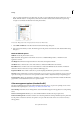
Note: If you don’t see a Page Scaling options, click the arrow next to the Printer menu to expose more controls in the
Print dialog box.
Advanced PDF print settings
More Help topics
Basic PDF printing tasks
About advanced print settings
If normal print settings don’t produce the results you expect, you may need to specify options in the Advanced Print
Setup dialog box. For example, if your printed output doesn’t match the document’s onscreen appearance, you may
need to try printing the document as an image (PostScript printers only). Or, if a PDF uses fonts that aren’t embedded,
you must download the fonts to the printer when you print the document.
Other advanced printing options in Acrobat Pro DC let you add printer marks to your printed output and choose how
to handle color.
Set advanced print options (Acrobat Standard)
The Advanced Print Setup dialog box is available for PostScript and non-PostScript printers.
1 In the Print dialog box, click Advanced.