
Operation Manual



359
Printing
Last updated 4/7/2015
Note: Depending on the visibility settings specified when the PDF was created, Apply Print Overrides may be
unavailable in the Options menu.
Change print settings for a layer
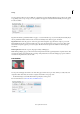
1 Click the Layers icon in the navigation panel. (If the Layers icon is not visible, choose View > Show/Hide >
Navigation Panes > Layers.)
2 Expand the Layers area, select a layer, and then select Layer Properties from the Options menu .
3 In the Layer Properties dialog box, choose one of the following from the Print pop-up menu:
Always Prints Forces the layer to print.
Never Prints Forces the layer not to print.
Prints When Visible Matches printed output to onscreen visibility.
Note: In Reader, you can open the Layer Properties dialog box, but you cannot change the settings.
Create print presets
A PDF can contain a set of print presets, a group of document-specific values that is used to set basic print options. By
creating a print preset for a document, you can avoid manually setting certain options in the Print dialog box each time
you print the document. It’s best to define print settings for a PDF at the time that you create it. However, print presets
provide a means to add basic print settings to a PDF at any time.
1 Choose File > Properties, and click the Advanced tab.
2 In the Print Dialog Presets section, set options and click OK.
The next time you open the Print dialog box, the values will be set to the print preset values. These settings are also used
when you print individual PDFs in a PDF Portfolio.
Note: To retain a print preset for a PDF, save the PDF after creating the print preset.
Print Dialog Presets
Page Scaling Prepopulates the Page Scaling menu in the Print dialog box with the option you choose:
Default Uses the application default setting, which is Shrink To Printable Area.
None Prevents automatic scaling to fit the printable area. Use this setting to preserve the scale in engineering
documents or the point size required for legal reasons.
Note: The Page Scaling menu in the Print dialog box shows additional options, but you cannot prepopulate the dialog box
with any of those options. Choose one of those options when you print.
DuplexMode For best results, the selected printer should support duplex printing if you select a duplex option.
Simplex Prints on one side of the paper.
Duplex Flip Long Edge Prints on both sides of the paper; the paper flips along the long edge.
Duplex Flip Short Edge Prints on both sides of the paper; the paper flips along the short edge.
Paper Source By Page Size Selects the option by the same name in the Print dialog box. Uses the PDF page size to
determine the output tray rather than the page setup option. This option is useful for printing PDFs that contain
multiple page sizes on printers that have different-sized output trays.
Print Page Range Prepopulates the Pages box in the Print Range section of the Print dialog box with the page ranges
you enter here. This setting is useful in a workflow where documents include both instruction pages and legal pages.