
Operation Manual



356
Printing
Last updated 4/7/2015
Print comments
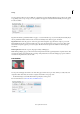
You can print comments either in a summary list, or in place (like sticky notes on a page).
Do one of the following:
Summary- In the Comments and Forms area, click Summarize Comments.
Drawing Markups - In the Comments and Forms area, choose Document And Markups.
Comments on the page - Follow these steps:
1 Open the Preferences dialog box, click Comments category on the left, and select Print Notes And Pop-Ups.
2 Deselect Hide Comment Pop-ups When Comment List Is Open.
3 Open the pop-up comments that you want to print.
4 Adjust their placement on the page so that they don't overlap or spill off the page.
5 Click the Print tool .
6 In the Comments and Forms area, choose Document And Markups.
Print a portion of a page
You can print a portion of a page in a PDF. Use the Snapshot Tool (Edit > Take a Snapshot) to select just the area you
want to print. The area can be text, graphics, or both. You can print the selected area full size or resize it to fit the paper.
1 Choose Edit > Take a Snapshot
2 Draw a rectangle to select a portion of a page
3 Choose File > Print
4 In the Print dialog box, click Selected graphic.