
Operation Manual



355
Printing
Last updated 4/7/2015
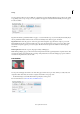
You can print more than one page of a PDF onto a single sheet of paper. Printing multiple pages per sheet is also called
n-up printing (such as 2-up or 6-up). You can specify how the pages are ordered, either horizontally across the page or
in vertical columns.
Pages Per Sheet Prints a predefined number of pages, or a custom number (up to 99), horizontally and vertically. If you
select a predefined number from the menu, Acrobat automatically selects the best paper orientation.
Page Order Defines how the pages are ordered on paper. Horizontal places pages from left to right, top to bottom.
Horizontal Reversed places pages from right to left, top to bottom. Vertical places pages top to bottom, left to right.
Vertical Reversed places pages top to bottom, right to left. Both reversed options are suitable for Asian-language
documents.
Print Page Border Prints the crop box (the page boundary of PDF pages).
Note: Printing multiple pages per sheet in Acrobat is independent of the N-up printing features of printer drivers. The
Acrobat print settings don’t reflect the N-up settings of the printer drivers. Select the multple pages options either in
Acrobat or in the printer driver, but not both.
Print booklets
You can print a multipage document as a booklet. The pages are laid out two per sheet. When you collate, fold, and
staple the double-sided sheets, the result is a single book with the correct page order.
• In the Print dialog box, click Booklet and then specify the booklet options.
For more information, see Print Booklets and PDF Portfolios.