
Operation Manual



348
Electronic signatures
Last updated 4/7/2015
Certificate-based signatures on attachments to component PDFs
You can add signatures to attachments before signing the cover sheet. To apply signatures to attached PDFs, open the
PDF in a separate window. Right-click the attachment, and choose Open File from the context menu. To view
signatures on the PDF Portfolio, navigate to the cover sheet to view the document message bar and signatures pane.
Signed and certified PDF Portfolios
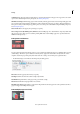
A properly signed or certified PDF Portfolio has one or more signatures that approve or certify the PDF Portfolio. The
most significant signature appears in a Signature Badge in the toolbar. Details of all signatures appear in the cover sheet.
• To view the name of the organization or person that signed the PDF Portfolio, hover the pointer over the Signature
Badge.
• To view details about the signature that appears in the Signature Badge, click the Signature Badge. The cover sheet
and the Signatures pane on the left open with details.
If the PDF Portfolio approval or certification is invalid or has a problem, the Signature Badge shows a warning icon. To
view an explanation of the problem, hover the pointer over a Signature Badge with a warning icon. Different warning
icons appear for different situations.
For a list and explanation of each warning, see the DigSig Admin Guide at www.adobe.com/go/learn_acr_security_en.
XML data signatures
Acrobat and Reader support XML data signatures that are used to sign data in XML Forms Architectures (XFA) forms.
The form author provides XML signing, validating, or clearing instructions for form events, such as button click, file
save, or submit.
XML data signatures conform to the W3C XML-Signature standard. Like PDF digital signatures, XML digital
signatures ensure integrity, authentication, and non-repudiation in documents.
However, PDF signatures have multiple data verification states. Some states are called when a user alters the PDF-
signed content. In contrast, XML signatures only have two data verification states, valid and invalid. The invalid state
is called when a user alters the XML-signed content.
Establish long-term signature validation
Long-term signature validation allows you to check the validity of a signature long after the document was signed. To
achieve long-term validation, all the required elements for signature validation must be embedded in the signed PDF.
Embedding these elements can occur when the document is signed, or after signature creation.
Without certain information added to the PDF, a signature can be validated for only a limited time. This limitation
occurs because certificates related to the signature eventually expire or are revoked. Once a certificate expires, the
issuing authority is no longer responsible for providing revocation status on that certificate. Without conforming
revocation status, the signature cannot be validated.