
Operation Manual





21
Workspace
Last updated 4/7/2015
Use Overprint Preview Specifies whether Overprint Preview mode is on only for PDF/X files, never on, always on, or
set automatically. When set to Automatic, if a document contains overprints, then Overprint Preview mode is activated.
The Overprint Preview mode lets you see (onscreen) the effects of ink aliasing in the printed output. For example, a
printer or service provider could create an ink alias if a document contains two similar spot colors and only one is
required.
Default Transparency Blending Color Space Sets the default color space, Working RGB or Working CMYK, for
transparency blending.
Reference XObjects View Mode
Show Reference XObject Targets Specifies the type of documents in which reference XObjects can be viewed.
Location Of Referenced Files (Optional) Specifies a location for the referenced documents.
More Help topics
Open a PDF in a web browser
Setting up a presentation
About PDF/X, PDF/E, and PDF/A standards
3D preferences
Multimedia preferences
Setting accessibility preferences
Change updating preferences
Keyboard shortcuts
For common keyboard shortcuts you can use with Windows, see http://support.microsoft.com/kb/126449.
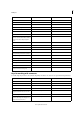
Keys for selecting tools
To enable single-key shortcuts, open the Preferences dialog box, and under General, select the Use Single-Key
Accelerators To Access Tools option.
To ol Windows/UNIX action Mac OS action
Hand tool H H
Temporarily select Hand tool Spacebar Spacebar
Select tool V V
Marquee Zoom tool Z Z
Cycle through zoom tools: Marquee
Zoom,Dynamic Zoom, Loupe
Shift+Z Shift+Z
Temporarily select Dynamic Zoom tool (when
Marquee Zoom tool is selected)
Shift Shift
Temporarily zoom out (when Marquee Zoom
tool is selected)
Ctrl Option