
Operation Manual



255
Reviews and commenting
Last updated 4/7/2015
Approval workflows
About approval workflows
Acrobat DC users (Traditional Chinese, Simplified Chinese, Japanese, and Korean only), can send PDFs as email
attachments for others to approve. When participants open an approval request in Acrobat (all languages), they can
approve the PDF by adding a digital identity stamp. Then, they can send the PDF to other approvers, or return the PDF
to the initiator and other appropriate participants. The initiator can track progress by choosing to be notified each time
the PDF is approved. The workflow ends when the last participant adds the final approval. If a PDF isn’t approved, the
approval workflow must be reinitiated.
Note: If you use Acrobat Pro DC to initiate the workflow, you can invite users of Reader 9 or later to participate by enabling
commenting in the
PDF.
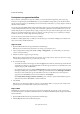
Wizard sets up approval workflows (left); Stamps palette provides stamps for approving documents (right).
Send a PDF for approval
When you send a PDF by email for approval (Traditional Chinese, Simplified Chinese, Japanese, and Korean only),
approvers receive the PDF as an email attachment. When recipients open the PDF attachment, they can apply a digital
identity stamp from the Stamps palette and then make the appropriate selection in the document message bar.
To send a PDF for approval, use the wizard in Acrobat DC. The wizard provides on-screen instructions to help you
invite approvers, customize instructions, and send the PDF.
In Acrobat Pro DC, the wizard enables commenting in the PDF so that Acrobat Reader DC users can participate in the
approval workflow.
Before you initiate an approval workflow, make sure that your email application is configured to work with Acrobat DC.
1 To start an approval workflow, choose Share > Send By Email For Approval.
2 If prompted, enter your email address in the Identity Setup dialog box.
3 Specify a PDF, and click Next.
4 Type the email address for the first approver in the To box.
5 (Acrobat Pro DC) If you want to enable Reader users to participate or if you want to be notified of the approval status
for each participant, specify those options.
6 (Acrobat Standard DC) If you want to be notified of the approval status for each participant, specify those options.
7 (Optional) Type additional instructions for the first approver at the top of the email message.
Only the default text message and instructions are forwarded to subsequent approvers.
Note: The invitation email contains instructions to help participants complete the approval process. Avoid changing or
removing this text.
8 Click Send Invitation.