
Operation Manual






251
Reviews and commenting
Last updated 4/7/2015
Approval workflows
Copy images
Sharing PDFs
Share files by email
You can share many file types, not just PDF files.
1 To email a file, do one of the following:
• Choose File > Send File.
• Click the Email icon in the toolbar.
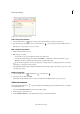
2 In the Send Email dialog box, choose an option and then click Continue.
• Select Use Default email application to use your email software
• Select Use Webmail to use email webmail systems such as Gmail or Yahoo
Check Remember my choice to bypass this dialog box in the future.
3 Click Continue, and follow the on-screen instructions.
To add or edit email accounts, see Email account preferences.
Adobe Online Services preferences
To change your Acrobat.com account settings, open the Preferences dialog box, and under Categories, select Online
Services.
Email Address (Adobe ID) Specifies your email address associated with your Adobe ID.
Sign Out Click to sign out of your Acrobat.com account.
Manage Account Click to view and manage your account settings.
Change Password Click to clear your currently saved password and specify a new one.
Copy Me When I Send An Email Invitation using Adobe online services When selected, sends you a copy of your
initiating email for shared reviews, and form distributions.
Email account preferences
To change or add email accounts, open the Preferences dialog box, and under Categories, select Email Accounts. The
email account is used in various worflows such as send file and review. You can use an account configured through your
default email client, or use webmail accounts such as Gmail or Yahoo! Mail.
Accounts Lists all the email accounts.
Add Account Select an email account to add. For Gmail and Yahoo! enter your email address. For other accounts, you’ll
need to enter more details such as your password, and server settings.
Edit Edits the settings for other email accounts.
Make Default Click to use the selected account to use as default.