
Operation Manual






249
Reviews and commenting
Last updated 4/7/2015
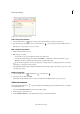
Note: The above dialog box appears when a recording device is not configured on your system.
3 Click Browse (Windows) or Choose (Mac OS), and select the audio file you want to add.
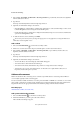
4 (Optional) To hear the audio comment, click the Play button . When you’re finished, click the Stop button and
then click OK.
5 Specify options in the Specify Attachment Properties dialog box, and then click OK.
Record an audio comment
Note: Before you record an audio comment, ensure that your system has a recording device installed and configured.
1 Choose the Record Audio tool from the secondary toolbar.
2 Click in the PDF where you want to place the audio comment.
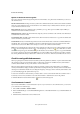
The Sound Recorder dialog box appears.
Note: The above dialog box appears when a recording device is configured on your system.
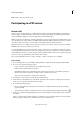
3 In the dialog box that appears, click the Record button and then speak into the microphone. When you’ve
finished recording, click the Stop button , and then click OK.
4 Specify options in the Sound Attachment Properties dialog box, and then click OK.
Add comments in a file attachment
Note: In Acrobat Reader DC, commenting tools are available only in PDFs that have commenting enabled. PDFs in a
review workflow typically include commenting rights.
Use the Attach File tool to embed a file at a selected location in a PDF, so that the reader can open it for viewing. By
adding attachments as a comment, you can reference longer documents that can’t easily be pasted into a pop-up note
or text box. If you move the PDF to a new location, the embedded file automatically goes with it. To view an attachment,
the reader must have an application installed that can open the attachment.
Note: Be sure to use the Attach tool when attaching files for a document review. Document-level file attachments that you
attach using the Attach A File tool
from the Tools > Edit PDF > More menu aren’t tracked with other comments in a
review workflow and may cause your attached comments to be lost.
1 Choose the Attach File tool from the Comment’s secondary toolbar.
2 Click in the PDF where you want to place the attachment.