
Operation Manual




242
Reviews and commenting
Last updated 4/7/2015
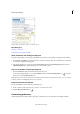
A Stamp B Text edit C Comment rollover (tool tip) D Sticky note
More Help topics
Add tags to comments
Commenting on 3D designs in PDFs
Show annotations and drawing markup tools
Annotations and markup tools don’t appear by default, except when you open a PDF in a managed review workflow.
1 Choose To o l s > Comment to open the Comment tools in the secondary toolbar. The comments that you add to the
document are displayed in the right pane.
2 The drawing markup tools are grouped under the Drawing Tools menu. Click Drawing Tools menu and select
Expand Drawing Tools to add the drawing tools to the secondary toolbar.
Select an annotation or drawing markup tool
• Open the Comment toolbar and select the desired annotation tool.
• To select the drawing markup tool, open the Comment toolbar and click the Drawing Tools icon . Select the
desired tool from the Drawing Tools menu.
Note: After you make an initial comment, the tool changes back to the Select tool so that you can move, resize, or edit your
comment. (The Pencil and Highlight Text tools stay selected.)
Keep an annotation tool selected
You can add multiple comments without reselecting the tool.
1 In the secondary toolbar, select the tool you want to use (but don’t use it yet).
2 Click the Keep Tool Selected icon
Commenting preferences
Commenting preferences affect both the appearance of and the way you view annotations and markups in PDFs.