
Operation Manual




241
Reviews and commenting
Last updated 4/7/2015
Annotations and drawing markup tools overview
Note: In Acrobat Reader DC, complete commenting tools are available only in PDFs that have commenting enabled. PDFs
in a review workflow typically include commenting rights.
You use annotation and drawing markup tools to add comments. The commenting tools are made available in the
secondary toolbar of the Comment feature. Comments are notes and drawings that communicate ideas or provide
feedback for PDFs. You can type a text message using the Sticky Note tool. Alternatively, you can use a drawing tool to
add a line, circle, or other shape and then type a message in the associated pop-up note. Text-editing tools let you add
editing marks to indicate changes that you want in the source document. Most commenting and markup tools don’t
appear in the toolbar until you enable the Commenting feature.
Note: If you open a PDF in a browser for a shared review that has ended, the commenting tools are unavailable.
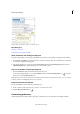
Most comments include two parts: the icon, or markup, that appears on the page, and the text message that appears in
a pop-up note when you click or double-click the icon or place the pointer over the icon.
After you add a comment, it stays selected until you click elsewhere on the page. Acrobat DC highlights a selected
comment with a blue halo to help you find the markup on the page. A wireframe with selection handles appears on
drawing markups and stamps, so that you can adjust the size and shape.
In Acrobat Pro DC, you can add tags to your comments so that readers with motion or vision limitations can read them
using assistive technologies.
Note: To see the labels along with the tool icons, right-click on the secondary toolbar and select Show All Labels.