
Operation Manual




240
Reviews and commenting
Last updated 4/7/2015
Start the review
Before you start an email-based review, make sure that your email application or webmail account is configured to work
with Acrobat.
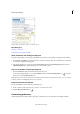
1 Choose To o l > Send For Comments.
The Send for Comments toolset is displayed in the secondary toolbar.
2 Click Send For Comments By Email.
3 If prompted, enter information in the Identity Setup dialog box.
4 Specify a PDF if it isn’t already open, and then click Next. The PDF that you specify becomes the master file. You’ll
merge comments you receive from reviewers into this file.
5 Specify reviewers by typing their email addresses. Insert a semicolon or a return between each address. Click
Address Book to select email addresses from your email application or webmail address book.
6 Preview and edit the email invitation as needed, and then click Send Invitation.
7 Select an email client to send the invite and click Continue.
A copy of the PDF is sent to the reviewers as an attachment. When this PDF attachment is opened, it presents
commenting tools and instructions.
Merge comments
After you receive comments from reviewers, you can merge the comments into the master PDF.
1 After a reviewer sends you comments, open the attached file in your email application. If the email application can’t
find the original version of the PDF, it prompts you to browse for it.
Note: It’s possible to forward comments to the initiator if you didn’t initiate the review. First merge these comments into
your copy of the PDF. Then send the comments (see
Send comments in email). If you’ve sent your comments already,
the initiator receives only new comments. Merged comments retain the original author name.
2 If you initiated the review, the Merge Comments dialog box appears. Select one of the following options:
Ye s Opens the master copy of the PDF and merges all comments into it. After comments are merged, save the
master PDF.
No, Open This Copy Only Opens the reviewer’s copy of the PDF with comments. If you select this option, you can
still merge comments by choosing Comments > Merge Comments Onto Master PDF.
Cancel Closes the reviewer’s PDF that contains comments.
More Help topics
Preparing for a PDF review
Tracking and managing PDF reviews
Managing comments
Importing and exporting comments
Commenting in PDFs