
Operation Manual




235
Reviews and commenting
Last updated 4/7/2015
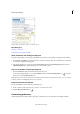
You can add a highlight with a note or you can cross out text or underline text by selecting the text using the Select tool,
right-clicking, and then choosing that option from the menu that appears. However, if you’re marking up a lot of text,
the specialized tools are faster and easier to use.
1 Choose Tools > Comment, and select the Highlight Text tool , the Strikethrough Text tool , or the
Underline Text tool .
Note: If you want to apply more than one comment using the Strikeout Text tool or the Underline Text tool, choose Keep
Tool Selected from the Options menu after you select the tool. The Highlight Text tool stays selected after you make the
first comment.
2 Drag from the beginning of the text you want to mark up. Control-drag to mark up a rectangular area of text. This
feature is especially useful when you are marking up text in a column.
3 (Optional) To add a note, double-click the markup and add text in a pop-up note.
More Help topics
Sharing PDFs and collaborating in real time
Preparing for a PDF review
Starting a review
Participating in a PDF review
Tracking and managing PDF reviews
Adding a stamp to a PDF
Commenting in PDFs
Managing comments
Importing and exporting comments
Approval workflows
Preparing for a PDF review
About managed PDF reviews
In a managed review, you use a wizard to set up your review, specify the document location, and invite participants.
You don’t have to import comments, enable commenting for Reader users, or manually track reviewer responses.
Note: You must have Acrobat Pro DC installed to enable commenting for Acrobat Reader DC users in managed reviews.
You cannot enable commenting for Acrobat Reader DC users using Acrobat Standard DC.
Acrobat includes two types of managed reviews: shared and email-based reviews. Each type of review has a wizard that
helps you distribute a PDF with special tools and instructions to reviewers.
The Tracker tracks all managed reviews. The Tracker provides access to the PDF file and information about the review
and its participants. Review initiators can change review deadlines, add reviewers, and end reviews from the Tracker.
The Tracker lets participants know when new comments are available, when deadlines are changed, and when
reviewers are added, even when Acrobat is closed. It also provides information about server error states.