
Operation Manual




224
Combining files
Last updated 4/7/2015
More Help topics
Print PDFs in a PDF Portfolio
Find text in multiple PDFs
Overview of PDF Portfolios
Create and customize PDF Portfolios
Working with component files in a PDF Portfolio
Merging PDFs and including other content
Working with component files in a PDF Portfolio
You can sort and preview component files in a PDF Portfolio, as well as open, edit, and save component files in their
native application. Some file types require that you install the native application on your computer.
View files in a list
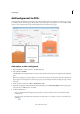
In an opened PDF Portfolio, click View > Portfolio > Details. The list of component files in the PDF Portfolio is
displayed below the secondary toolbar. To sort file details by ascending and descending order, click a column name.
Click it a second time to reverse the order.
Edit file details in a list (Acrobat Pro DC)
1 In an opened PDF Portfolio, click View > Portfolio > Details.
The list of component files in the PDF Portfolio are displayed below the secondary toolbar.
2 Do any of the following in the files list pane:
• To show or hide a column in the list, right-click and choose View and select the column name.
• To sort required columns by ascending and descending order, click a column heading. Click a second time to
reverse the order
• To add or change information of a file, right-click the filename and select Edit Value and then choose the type
of information you want to update. For example, to add descriptive information about the file, right-click on the
filename, choose Edit Value > Description. In the Edit Description dialog, enter the file description.
• To add a column, right-click and choose Portfolio Properties. In the Portfolio Properties dialog box, click Add
and type the name of the column you want to add and click OK.
• To delete optional columns, open the Portfolio Properties dialog box, select the column name that you want to
delete, and then click Delete. You cannot delete required columns, such as Name, Modified, Size, and Created.
• To change the order of a column, open the Portfolio Properties dialog box, select the column name, and click
the Up or Down button. You can also drag a column in the file list pane.
• To change the order of files, see Sort, filter, and change the order of files or folders (Acrobat Pro DC).