
Operation Manual




221
Combining files
Last updated 4/7/2015
Add backgrounds to PDFs
A background appears behind text or images on the page. The background can be as simple as a solid color, or you can
use an image. You can selectively apply a background to only specific pages or page ranges in one or more PDFs. A PDF
supports only one background per page, but the backgrounds can vary from page to page.
Add, replace, or edit a background
1 Open the PDF file to which you want to add the background.
2 Choose To o ls > Edit PDF.
The Edit PDF toolset is displayed in the secondary toolbar and other related options are displayed in the right hand
pane.
Note: If a message appears, telling you that the current document already has a background, click Replace Background.
If you apply the new background to a limited range of pages, the old background remains unchanged on pages outside
that range.
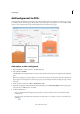
3 In the secondary toolbar, choose More > Background > Add.
4 (Optional) To apply the background selectively to individual pages, click Page Range Options. Then specify a page
range and choose a Subset option, as needed.
5 Specify the background:
• To reuse a background and background options that you saved in an earlier session, select it from the Saved
Settings menu.
• To apply a solid color background, select From Color. Then select a color swatch or custom color from the color
picker
.