
Operation Manual




217
Combining files
Last updated 4/7/2015
Crop PDF pages
You can adjust the visible page area using the Crop Pages tool and the Set Page Boxes dialog box. Cropping pages can
help you create consistency within a PDF composed of pages of different sizes.
Note: Cropping does not reduce file size because information is merely hidden, not discarded.
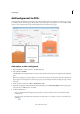
Crop a page with the Crop tool
1 Choose To o ls > Edit PDF.
The Edit PDF toolset is displayed in the secondary toolbar.
2 In the secondary toolbar, click Crop Pages.
3 Drag a rectangle on the page you want to crop. If necessary, drag the corner handles of the cropping rectangle until
the page is the size you want.
4 Double-click inside the cropping rectangle.
The Set Page Boxes dialog box opens, indicating the margin measurements of the cropping rectangle and the page
to be cropped. You can override the crop area you defined, making new selections in the dialog box before clicking
OK.
5 To apply these settings to additional pages, set the page range or click All under Page Range.
6 Click OK to crop the page or pages.
Margin Control options in the Set Page Boxes dialog box
The Set Page Boxes dialog box contains options for cropping pages. The Margin Control options are as follows:
Show All Boxes (Acrobat Pro DC) Shows the black, red, green, and blue rectangles indicating the CropBox, ArtBox,
TrimBox, and BleedBox on the preview. When two (or more) margins coincide, only a colored line appears.
CropBox Defines the boundary for the contents of a page when it’s displayed or printed.
ArtBox (Acrobat Pro DC) Defines the meaningful content of the page, including white space.
TrimBox (Acrobat Pro DC) Defines the finished dimensions of the page after trimming.
BleedBox (Acrobat Pro DC) Defines the clipping path when the page is printed professionally to allow for paper
trimming and folding. Printing marks may fall outside the bleed area.
Constrain Proportions Locks the proportions of the crop so that all margins are at the same distance.
Remove White Margins Crops the page to the artwork boundary. This option is useful for trimming the edges of
presentation slides saved as PDFs.
Set To Zero Restores the crop margins to zero.
Revert To Selection Reverts to the crop margin selected with the Crop Page tool.
Remove white margins
1 Choose To o ls > Print Production.
The Print Production toolset is displayed in the right hand pane.
2 Click Set Page Boxes.
The Set Page Boxes dialog box is displayed.