
Operation Manual




12
Workspace
Last updated 4/7/2015
More Help topics
PDF Portfolio window overview
Keys for selecting tools
View PDFs in Read mode
Security warnings
Enhanced security
Filling in forms
Commenting
Mobile Link: open once, read anywhere
Access your recent files across all devices using Mobile Link
With the new Mobile Link feature, the files you opened recently on any of your computers or mobile devices are always
with you. You can also access your recent files by signing in to your Adobe Document Cloud account using a web
browser.
When you enable the feature on any one of your devices, the PDF files that you opened recently are available in your
recent file list wherever you are. Sign in on all your devices to access the up-to-date recent files list. Reader/Acrobat
automatically uploads your recently viewed files to Adobe Document Cloud in the background and synchronizes the
recent files list among all your devices. When you open a file from the list, Reader/Acrobat downloads the file in real
time if it’s not available locally, and then displays the file.
Note: The Mobile Link feature is not available in Reader and Acrobat on Windows XP.
Enable Mobile Link
Tur n Mobile Link ON from any device and it's ON everywhere. Simply sign in on your other devices or at
https://cloud.acrobat.com in a web browser and your recently opened PDF files are available for you.
On the desktop
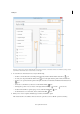
1 Launch Acrobat DC or Acrobat Reader DC. Choose Home > Recent file list.
2 The Mobile Link status is displayed at the botton of the right pane on the left.
Click the slider button on the left. You see a confirmation message that the feature is ON now.