
Operation Manual




9
Workspace
Last updated 4/7/2015
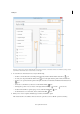
A Arrange or delete tools in the Tool's Toolbar B Add custom panels, instructions, or divider line between tools C Rename, arrange, or delete
tools D
Add to Tool's Toolbar above or Custom Tools set on the right
3 To customize tools in the Custom set, do any of the following:
• To add a tool in the Custom set, click the panel on the left, and then click the Add To Custom set icon.
• To create your own panel, click the Add Section icon on the right. Give the panel a name, and click Save.
• To add a tool to a panel, select the panel on the right, select the tool on the left, and click the Add To Custom set
icon.
• To remove a tool from the set, select its icon and click the Delete icon.
• To change the position of a tool, select it on the right, and click the Up or Down Arrow icons.
• To add a horizontal line to separate groups of tools, click the Add Divider icon.
• To edit instructions or section name, select it, and click the Edit icon.
4 When your tool set is complete, click Save, type its name, and click Save again.
The created custom tool is added to the Tools center. To open the tool, choose To o l s > [custom tool name].