
Operation Manual




8
Workspace
Last updated 4/7/2015
Select a tool
By default, the Select tool is active when Acrobat opens, because it is the most versatile tool.
❖ Do one of the following:
• Select a tool in a toolbar.
• Choose View > Show/Hide > Toolbar Items > [toolbar name] > [tool].
Create custom tools
You can assemble your own customized collection of Acrobat features, then save it and share with others. It allows you
to quickly access the tools and commands you use the most.
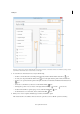
1 Choose To o ls > Create Custom Tool.
2 To customize the Toolbar, do any of the following:
• To add a tool to the toolbar, click the panel on the left, select the tool, and click the Add To Toolbar icon.
• To remove a tool from the toolbar set, select its icon, and click the Delete icon.
• To change a tool’s position in the toolbar, select its icon, and click either the move left or move right
icon.
• To add a vertical line to separate groups of tools in the toolbar, click the Add Vertical Line icon.