
Operation Manual




7
Workspace
Last updated 4/7/2015
Quick tools
You can add tools you use frequently from the Tools to the Quick Tools toolbar.
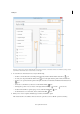
1 Right-click an empty space in the toolbar and choose Customize Quick Tools.
2 In the Customize Quick Tools dialog box, do any of the following:
• To add a tool, select it in the left pane and click the Up Arrow icon.
• To remove a tool, select its icon and click the Delete icon.
• To change a tool’s position in the toolbar, select its icon and click either or .
• To add a vertical line to separate groups of tools in the toolbar, click .
Common Tools
You can add tools to the Common Tools toolbar.
1 Right-click an empty space in the toolbar.
2 Select a tool from the menu.
3 To remove a tool from the toolbar, right-click the tool and deselect it from the menu.
Hide and show toolbars
When your work does not involve using the tools in a toolbar, you can close the toolbar to tidy up the work area. If
several PDFs are open, you can customize the toolbars for each PDF independently. The different customized states
persist as you switch between PDFs.
• To hide all toolbars, choose View > Show/Hide > Toolbar Items > Hide Toolbars.
• To return toolbars to their default configuration, choose View > Show/Hide > Toolbar Items > Res et Toolbars.
If you have hidden all the toolbars, you can show them again by pressing F8.