
Operation Manual






81
USING ACROBAT 9 STANDARD
Creating PDFs
Last updated 9/30/2011
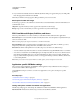
A menu on the PDF toolbar provides easy conversion and print capabilities.
More Help topics
“Web page conversion options” on page 83
Convert a web page to PDF
1 In Internet Explorer, go to the web page.
2 Using the Convert menu on the Adobe PDF toolbar, do one of the following:
Note: If you don’t see the Adobe PDF toolbar in Internet Explorer, choose View > Toolbars > Adobe PDF.
• To create a PDF from the currently open web page, choose Convert Web Page To PDF. Then select a location, type
a filename, and click Save.
• To add a PDF of the currently open web page to another PDF, choose Add Web Page To Existing PDF. Then locate
and select the existing PDF, and click Save.
• To create and print a PDF from the currently open web page, choose Print Web Page. When the conversion is
complete and the Print dialog box opens, specify options and click OK.
• To create a PDF from the currently open web page and attach it to a blank email message, choose Convert Web
Page And Email. Then specify a location and filename for the PDF, and click Save. Type the appropriate
information in the email message that opens after the conversion is complete.
• For any of these options, to open the output PDF after conversion, select View Adobe PDF Results.
Convert part of a web page to PDF
1 Drag the pointer to select text and images on a web page.
2 Right-click on the selected content and choose one of the following:
• To create a new PDF, choose Convert To Adobe PDF. Then select a name and location for the PDF.
• To append the selected content to another PDF, choose Append To Existing PDF. Then locate and select the PDF
to which the selection will be added.
Convert selected areas in a web page to PDF
You can use the Select option to select specific areas on a web page to convert. You can use this option to convert
meaningful content on a web page and omit unwanted content, such as advertisements.
1 On the Adobe PDF toolbar, click Select .
2 As you move the pointer around the web page, a red dotted line indicates areas of the web page that you can select.
Click the areas to convert. Selected areas appear in blue boxes. To deselect an area, click it again.
3 Proceed with conversion as usual.
4 To deselect all areas and exit Select mode, click Select again.