T E C H N O L O G I E S User Guide Z Snap-In Disk Array (Z4SNHU3) www.addonics.com v8.1.11 Technical Support If you need any assistance to get your unit functioning properly, please have your product information ready and contact Addonics Technical Support at: Hours: 8:30 am - 6:00 pm PST Phone: 408-453-6212 Email: http://www.addonics.
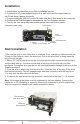
Installation 1. Install drives as described in the Disk Installation section. 2. Connect the AC power adapter’s input to a wall outlet and the output cable to the Z Disk Array’s power connector. 3. Connect either the USB 3.0 or eSATA cable from the Z Disk array to the computer. 4. Configure the Port Multilpier as described in the Port Multiplier section. 5. Turn on the unit using the power switch on the back next to the power connector (see note). Power Switch Power Connector USB 3.
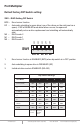
Port Multiplier Default factory DIP Switch setting: SW1 – RAID Setting DIP Switch OFF OFF OFF OFF SW1 OFF BZS – Error buzzer function EZ – Automatic rebuilding to spare drive (one of the drives on the raid is set as a spare). If EZ is ENABLED anda drive failure occurs, the spare will automatically act as a drive replacement and rebuilding will automatically start. M2 – RAID mode 2 M1 – RAID mode 1 M0 – RAID mode 0 1 2 3 4 5 BZS EZ M2 M1 M0 1.
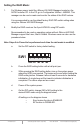
Setting the RAID Mode: 1. For Windows users, install the JMicron HW RAID Manager located on the SATA Controller CD. In the CD, go to Configuration Utilities > JMB393. This manager can be use to create and monitor the status of the RAID volume. It is recommended to use the default factory RAID DIP switch setting when using the JMicron HW RAID Manager. 2.
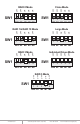
SW1 1 ON 5 ON 4 OFF ON 3 Clone Mode OFF ON 2 OFF ON 1 OFF OFF SW1 RAID 0 Mode 2 3 4 5 5 SW1 1 ON 4 OFF 3 ON 2 OFF 1 OFF OFF SW1 ON Large Mode ON RAID 1& RAID 10 Mode OFF BZS EZ M2 M1 M0 OFF BZS EZ M2 M1 M0 2 3 4 5 SW1 BZS EZ M2 M1 M0 OFF 5 OFF 4 OFF 3 OFF 2 OFF 1 OFF SW1 OFF Individual Drives Mode ON RAID 3 Mode OFF BZS EZ M2 M1 M0 OFF BZS EZ M2 M1 M0 1 2 3 4 5 BZS EZ M2 M1 M0 OFF OFF ON OFF SW1 OFF RAID 5 Mode 1 2 3 4 5
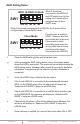
RAID Setting Notes: RAID 1& RAID 10 Mode When 2 drives are SW1 1 2 3 4 5 BZS EZ M2 M1 M0 connected to the HPM-XU, and DIP switch is set to this setting, the 2 drives will be configured as a 2-drive RAID1 array. When 4 drives are connected to the HPM-XU, the 4 drives will be configured as a 4-drive RAID10 array. Clone Mode SW1 1 2 3 4 5 BZS EZ M2 M1 M0 Clone’s action is similar to RAID1. However, all of the hard drives will be mirrored.
Notes on Spare Drives using the Easy RAID Setting (EZ) When EZ function is ENABLED, the auto-rebuilding to spare drive is automatic. The degraded RAID group will start rebuilding automatically by using the existing spare drive. * Spare drive can be either plugged after RAID building or a new drive can be plug as the spare drive when RAID rebuild is required. When will rebuild action start? • When the raid fails and EZ is enabled, the HPM-XU will automatically rebuild the RAID group using the spare.