
User`s guide



5
Installing the SlimSCSI Windows 95 Driver
Installing the SlimSCSI
Windows 95 Driver
1
If Windows 95 is not already running, start it now.
2
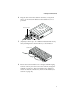
If the SlimSCSI 1480 is not already inserted in the CardBus slot,
insert it now. Then wait until Windows 95 finishes building the
database information for the adapter. The Windows 95 Update
Device Driver Wizard starts automatically.
3
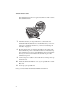
When you are prompted by the Update Device Driver wizard,
insert the SlimSCSI 1480 Setup Diskette for Windows 95 in the
floppy disk drive. Click the
Next
button.
Note:
Refer to the Windows 95 Device Driver Wizard
Help if you have questions about installing the driver.
4
If you see
Adaptec APA-1480 CardBus SCSI Controller
in the
dialog box, click the
Finish
button.
If you see a message prompting you to insert the disk that is
already in the floppy drive, click
OK
. Then type
a:
as the
source from which to copy files and click
OK
again.
5
Wait until the PC Card (PCMCIA) icon appears on the
Windows taskbar in the lower right corner of the screen. This
indicates that the driver is successfully installed!
If the PC Card icon does not appear on the taskbar, click the
Start
button and select
Settings
and
Control Panel.
In the Con-
trol Panel, double-click the
PC Card (PCMCIA)
icon. In the
Properties dialog box, select
Show control on taskbar
if it is
not already selected and click
OK
. The PC Card icon should
then appear on the taskbar.
Congratulations! You have successfully installed the SlimSCSI 1480!