
Manual


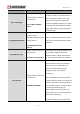
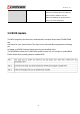

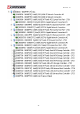

Table Of Contents
- AR-R5800 System
- 1.1 Specifications
- 1.2 Packing List
- 1.3 System Dissection
- 2.1 2.5” HDD Installation
- 2.2 CF Card Installation
- 2.3 Power Cord Hook Installation
- 2.4 PCIe Card Installation
- 2.5 Rack Bracket Installation
- 1.1 Specifications
- 1.2 Package Contents
- 1.3 Block Diagram
- 2.1 Locations (Top side)
- 2.2 Connectors and Jumper Setting
- 2.3 Connector and Jumper Setting
- Date Setup
- Time Setup
- IDE Channel 0 Master
- SATA Channel 1/2
- Halt On
- Quick Power On Self Test
- Full Screen Logo Show
- APIC Mode
- Pre-allocated Memory Size
- DVMT Mode
- Console Redirection
- Baud Rate
- LAN Bypass Function
- Reset Configuration Data
- Resources Controlled By
- IRQ Resources
- Onboard Serial Port 1
- Onboard Serial Port 2
- USB Device Setting
- USB 1.0 Controller
- USB 2.0 Controller
- USB Operation Mode
- USB Keyboard Function
- USB Storage Function
- First / Second / Third Boot Device/Other Boot Device
- LAN Boot Select
- Hard Disk Boot Priority
- Save & Exit Setup
- Load Optimized Defaults
- Exit Without Saving
- Set Password

Revision: 1.0
Option Choice Description
Save & Exit Setup
Pressing <Enter> on this item
for confirmation:
Save to CMOS and EXIT
(Y/N)? Y
Press “Y” to store the selections made in
the menus in CMOS – a special section of
memory that stays on after you turn your
system off. The next time you boot your
computer, the BIOS configures your system
according to the Setup selections stored in
CMOS. After saving the values the system
is restarted again
Load Optimized Defaults
When you press <Enter> on
this item you get a
confirmation dialog box with a
message like this:
Load Optimized Defaults
(Y/N)? N
Press ‘Y’ to load the default values that are
factory-set for optimal-performance system
operations.
Exit Without Saving
Pressing <Enter> on this item
for confirmation:
Quit without saving (Y/N)? Y
This allows you to exit Setup without storing
any changes in CMOS. The previous
selections remain in effect. This shall exit
the Setup utility and restart your computer.
Set Password
Pressing <Enter> on this item
for confirmation:
ENTER PASSWORD:
When a password has been enabled, you
will be prompted to enter your password
every time you try to enter Setup. This
prevents unauthorized persons from
changing any part of your system
configuration.
Type the password, up to eight characters
in length, and press <Enter>. The password
typed now will clear any previous password
from the CMOS memory. You will be asked
to confirm the password. Type the
password again and press <Enter>. You
may also press <Esc> to abort the selection
and not enter a password.
To disable a password, just press <Enter>
43