
Operation Manual



11 Copyright © Acronis International GmbH, 2002-2015
Note: To delete a backup, select it, and then click the minus sign. The backup will be removed from the
list, and the backup files will be deleted from the backup storage.
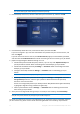
3. Click the backup source icon, select the disks that you want to back up, and then click OK.
4. Click the backup destination icon, select Acronis Cloud, and then click OK.
If you are not signed in yet, enter the email address and password of your Acronis account, and
then click Sign In.
If you do not have an Acronis account, click Create Account, type your email address, password,
and then click the Create Account button. Refer to Creating an Acronis account (p. 15) for details.
5. [Optional step] Configure additional settings. You can:
Exclude data protected with third-party services, if you use any. Click Optimize backup and
specify the data to exclude. Refer to Excluding items from backups (p. 12) for details.
Exclude files and folders manually at Settings —> Exclusions. Refer to Excluding items from
backups (p. 12) for details.
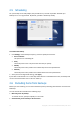
Configure the backup schedule at Settings —> Schedule. Refer to Scheduling (p. 12) for
details.
A scheduled backup runs even after you sign out of Acronis Cloud.
Protect your backup with a password and encryption at Settings —> Encryption. Select the
Encrypt backup check box, and then type a password. Please memorize this password,
because it cannot be retrieved.
Acronis True Image 2015 protects your backups with an AES (Advanced Encryption Standard)
cryptographic algorithm using a 256-bit encryption key.
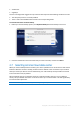
Select a preferred data center at Settings —> Advanced. Refer to Selecting Acronis Cloud
data center (p. 14) for details.
6. After you have configured all settings and you are ready to start a backup, click Start Backup.
The first online backup may take a considerable amount of time to complete. Future backup processes will
likely be much faster, because only changes to files will be transferred.
To recover your Mac from a Acronis True Image backup, you must have an Acronis bootable media. If
you do not have one, please create it. Refer to Creating bootable rescue media (p. 16) for details.