
Operation Manual





Chapter 8. Scheduling tasks
Acronis True Image Home allows you to schedule periodic backup tasks. Doing so will give
you peace of mind, knowing that your data is safe.
You can create more than one independently scheduled task. For example, you can back up
your current project daily and back up the application disk once a week.
All the scheduled tasks appear in the Scheduled Tasks window, where you can start, stop,
edit, delete and rename them.
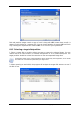
To navigate to the Scheduled Tasks window, click Tasks in the Manage Tasks group or
select the Task Scheduling category on the sidebar.
8.1 Creating scheduled tasks
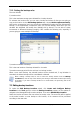
1. To invoke the Schedule Task Wizard, select Operations -> Schedule Task from the
main menu. Or, you can click Task in the Manage Tasks group or select the Task
Scheduling category on the sidebar to navigate to the Scheduled Tasks window. Then click
the Create button on the toolbar.
2. Select the data to back up.
3. Select the destination for the backups that will be created on a schedule. If you choose to
create the backup archive on a network drive, you will have to enter a user name and a
password for network access.
4. If the archive destination is other than a backup location, select the backup mode (full,
incremental, differential). See details in
5.2.6 Selecting the backup mode
. For definitions
and basic information about full, incremental and differential backup modes see
3.2 Full,
incremental and differential backups
.
If you chose to store backups in a backup location, set the backup policy for the backup
task.
Acronis True Image Home offers three types of backup policies:
1) create full backups only
2) create full backups with specified number of incremental backups
50 Copyright © Acronis, Inc., 2000-2007