
Operation Manual





7.1.2 Setting the backup rules
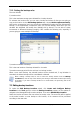
The rules include:
1) maximum size
This is the maximum storage space allowed for a backup location.
To estimate the location size, you can start a backup and select all data you are going to
copy to the location. At the Set Backup Options step, choose Set the options manually,
then set the compression level. You will see the estimated full backup size (for disk/partition
backup) or the approximate compression ratio (for file-level backup) with which you can
calculate the estimated full backup size. Multiply this by about 1.5 to be able to create
incremental or differential backups (roughly). Also consider the following rule, especially if
you are going to create multiple full backups.
2) maximum number of backups
This is the total number of backups allowed for a location
3) maximum storage period for the archives in a backup location
When a user starts backup, the selected location will be checked and, if any limitation is
exceeded, the oldest backups will be consolidated or deleted.
When creating a backup task, be sure to select the backup location from the Backup
Locations list, near the top of the directory tree. Doing so will enable the above processing
of backups. If you select a backup location as a normal folder, the processing will not be
performed.
7.2 Editing backup locations
To invoke the Edit Backup Location wizard, click Create and Configure Backup
Locations in the Tools group or select the Backup Locations category on the sidebar to
navigate to the Manage Backup Locations window. Then select Edit Backup Location.
Select the location and enter the new values for backup rules. The new rules will be applied
to the entire location: at next backup to this location, all its contents will be processed
according to the new rules.
48 Copyright © Acronis, Inc., 2000-2007