
Operation Manual





Chapter 7. Backup location management
This section covers creation and deletion of backup locations, setting rules for backup
locations and viewing archives contained in backup locations.
Before you start managing backup locations, be sure to read section
3.5 Acronis backup
locations,
stating their purpose and basic principles.
7.1 Creating backup locations
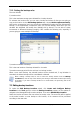
To invoke the Create Backup Location wizard, click Create and Configure Backup
Locations in the Tools group or select the Backup Locations category on the sidebar to
navigate to the Manage Backup Locations window. Then select Create Backup Location.
Creating a location includes the following steps.
7.1.1 Setting a path to the backup location
Backup locations can be organized
• on a local (internal) hard drive
• on an external drive (USB or like)
• on any rewritable media that is recognized by the BIOS (flash card, for example)
• on a network share
• on an FTP server
Provide a full path to the folder that will become a backup location along with the username
and password for the network drive or FTP server access.
Obviously, you must avoid backing up to the same disk where your operating system and
user data are located. If you have only one disk and cannot store your backups outside the
computer, use Acronis Secure Zone instead of backup locations.
When using removable media, a network share or an FTP server, consider the storage free
space and availability of that storage in case you need data recovery.
Copyright © Acronis, Inc., 2000-2007 47