
Operation Manual





6.3.12 Restoration summary and executing restoration
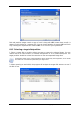
At the final step, the restoration summary is displayed. Up to this point, you can click Back
to make changes in the created task. If you click Cancel, no changes will be made to
disk(s). Clicking Proceed will launch the task execution.
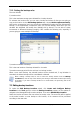
The task progress will be shown in a special window. You can stop the procedure by clicking
Cancel. However, it is critical to note that the target partition will be deleted and its space
unallocated – the same result you will get if the restoration is unsuccessful. To recover the
“lost” partition, you will have to restore it from the image again.
6.4 Setting restore options
To view or edit the default restore options, select Tools -> Options -> Default
Restoration Options from the main program menu.
You can edit the default (or set the temporary) restore options while creating a restore task
as well.
6.4.1 Files overwriting mode
This option allows you to keep useful data changes made since the backup being restored
was done. Choose what to do if the program finds in the target folder a file with the same
name as in the archive:
• Overwrite existing file – this will give the archived file unconditional priority over the
file on the hard disk.
• Overwrite existing file if it is older – this will give the priority to the most recent file
modification, whether it be in the archive or on the disk.
• Do not overwrite existing file – this will give the file on the hard disk unconditional
priority over the archived file.
This option is effective only when restoring files from file/folder archives.
6.4.2 Pre/post commands
You can specify commands or batch files to be automatically executed before and after the
restore procedure. Click Edit to open the Edit Command window where you can easily
Copyright © Acronis, Inc., 2000-2007 45