
Operation Manual

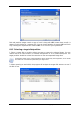




Using this feature, you can redistribute the disk space between partitions being restored. In
this case, you will have to restore the partition to be reduced first.
These changes might be useful if you are to copy your hard disk to a new high-capacity one
by creating its image and restoring it to a new disk with larger partitions.
6.3.9 Assigning a letter to the restored partition
Acronis True Image Home will assign an unused letter to a restored partition. You can select
the desired letter from a drop-down list. If you set the switch to No, no letters will be
assigned to the restored partition, hiding it from OS.
You should not assign letters to partitions inaccessible to Windows, such as to those other
than FAT and NTFS.
6.3.10 Restoring several disks or partitions at once
During a single session, you can restore several partitions or disks, one by one, by selecting
one disk and setting its parameters first and then repeating these actions for every partition
or disk to be restored.
If you want to restore another disk (partition), select Yes, I want to restore another
partition or hard disk drive. Then you will return to the partition selection window (6.3.4)
again and will have to repeat the above steps. Otherwise, don’t set this switch.
6.3.11 Setting restore options
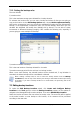
Select the options for the restoration process (that is, restoration process priority etc.). You
can Use default options or Set the options manually. If the latter is the case, the
settings will be applied only to the current restore task. Or, you can edit the default options
from the current screen. Then your settings will be saved as default. See
6.4 Setting restore
options
for more information.
44 Copyright © Acronis, Inc., 2000-2007