
Operation Manual

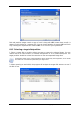




Restore specified files or folders
With this selection, you will be further asked to select where to restore selected folders/files
(original or new location), choose files/folders to be restored and so on. These steps look like
those in file archive restore. However, watch your selection: if you are to restore files instead
of disk/partition, uncheck the unnecessary folders. Otherwise you will restore a lot of excess
files. Then you will be taken directly to Restoration Summary screen (
6.3.12 Res oration
summary and execu ing restoration
).
t
t
t
t
Restore disks or partitions
Having chosen a disks/partitions recovery type, you will have to make all settings described
below.
Using Snap Restore
When restoring a system disk/partition image (except for Windows Vista images) from
Acronis Secure Zone, you have a third choice – to use Acronis Snap Restore. If you
choose this option, you will proceed directly to the summary window (
6.3.12 Res oration
summary and execu ing restoration
). In a few seconds after pressing Proceed the computer
will reboot to the restored system. Log in and start work – no more reboots or other actions
are required. For more about Acronis Snap Restore, see
3.6 Acronis Snap Restore
.
When performing Snap Restore, the current Acronis True Image Home version always
restores the entire system disk. Therefore, if your system disk consists of several partitions
and you are planning to use Acronis Snap Restore, all partitions must be included in the
image. Any partitions that are missing from the image will be lost.
However, you can choose an ordinary way of restoration for that image. This will allow you
to make changes to the restored partition that would not be possible when using Acronis
Snap Restore.
Finally, if you are not going to recover the system, but only want to repair damaged files,
select Restore specified files or folders.
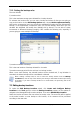
6.3.4 Selecting a disk/partition to restore
The selected archive file can contain images of several partitions or even disks. Select which
disk/partition to restore.
Copyright © Acronis, Inc., 2000-2007 41